
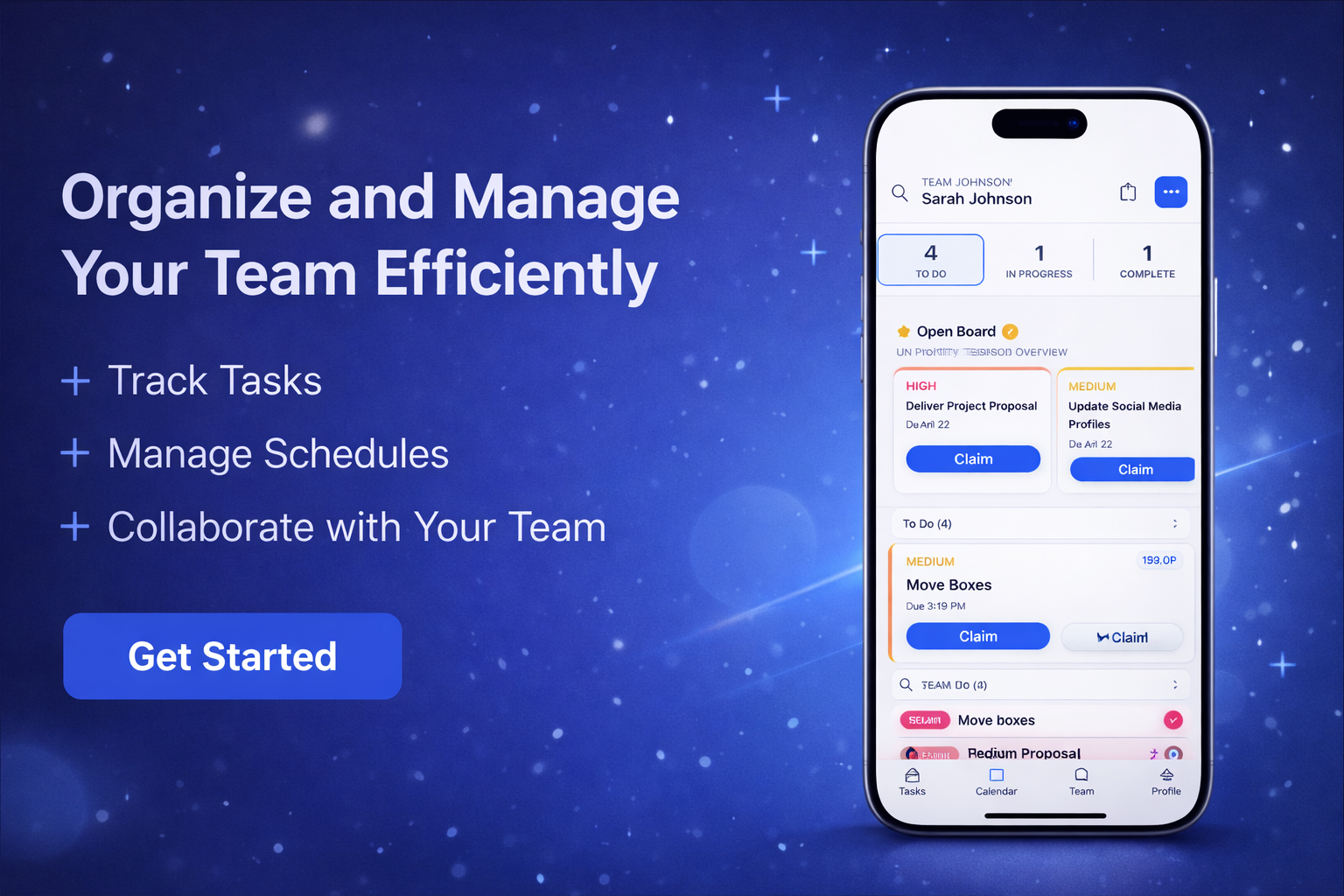
Assign tasks, manage schedules, and keep everyone moving.
TeamFlow helps managers and employees stay aligned with a simple task board, shared calendar, real-time progress tracking, reminders, and an open board for unclaimed work.
Deliver Project Proposal
Unclaimed and ready for a teammate to grab.
Q2 Marketing Report
Compile and analyze Q2 performance metrics for leadership.
Client Onboarding Call
Walk the new client through platform setup and next steps.
Everything your team needs in one place
Designed to be simple for employees and powerful for managers, TeamFlow keeps work visible, organized, and easy to complete.
Task Tracking
Create tasks, assign owners, set priorities, and move work from To Do to Complete with clear status visibility.
Team Calendar
View work by day, week, or month so employees know where to be, what to do, and when it is due.
Open Board
Post unclaimed tasks for team members to pick up on a first-come, first-served basis.
Priority & Overdue Alerts
Highlight urgent work and overdue items so nothing slips through the cracks.
Smart Reminders
Set reminders before tasks are due so your team gets nudged at the right time.
Manager Visibility
See workload, progress, and completion across the whole team from one clean dashboard.
How it works
Get your team up and running quickly with a workflow that is easy to understand from day one.
Create and assign work
Add tasks, choose who owns them, set due dates, and organize work by priority or status.
Keep everyone aligned
Employees can see their upcoming work in a clear dashboard and calendar view across the day, week, or month.
Track progress live
Managers can monitor what is To Do, In Progress, or Complete without chasing people down for updates.
Stay ahead of deadlines
Use reminders, overdue alerts, and the open board to make sure important work keeps moving.
Frequently asked questions
Who is this app for?
It is built for teams that need a simple way to manage tasks and schedules, including office teams, event staff, field teams, and operations groups.
Can managers assign tasks and reminders?
Yes. Managers can create tasks, assign them to employees, set due dates, and configure reminders before deadlines.
Can employees claim open work?
Yes. The open board lets available employees claim tasks that are not assigned yet.
Where do I get help?
You can use the dedicated support page for setup help, troubleshooting, and contact information.
Need help or have a question?
Visit the support page for answers, troubleshooting steps, and contact details.

%20(1).png)


